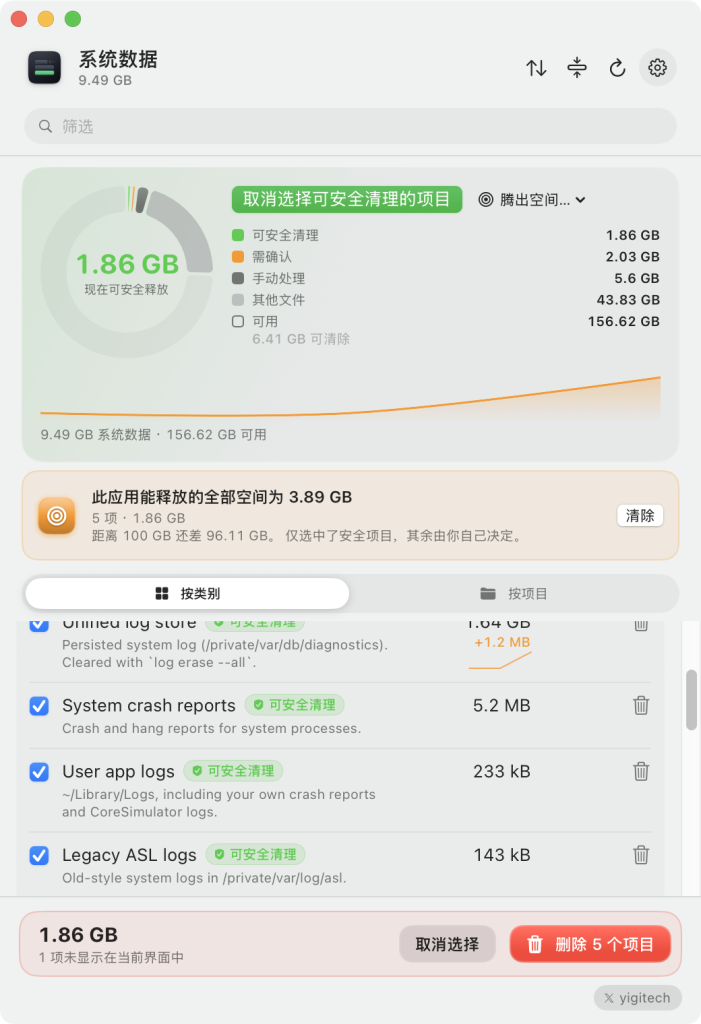
System Data Unpacked is an open-source macOS tool (free, signed and notarised by Apple, requires macOS 14 or later). It solves a familiar problem: the Storage settings in macOS lump every file it cannot classify into one grey bar labelled “System Data”. This app opens that bar up, showing simulators, Xcode build products, package-manager caches, AI models and backups, and lets you delete items individually or shrink folders without deleting them. Every operation first shows the exact command it will run.
Sample data (from one developer’s Mac): 245 GB drive, 218 GB used, of which 107.9 GB was “System Data”. Broken down: project build directories (node_modules, .next) 23.8 GB, simulator devices 19.5 GB, simulator runtimes 15.9 GB, package managers (Homebrew, uv) 13.3 GB, AI models and tools 8.1 GB, rebuildable caches 6.6 GB, and 20.7 GB of other files.
Install from GitHub Releases (DMG) or with brew install --cask jarvis322/tap/sysdata.
Three safety labels
- Safe: caches, build products and logs that the system rebuilds automatically; the only cost is one rebuild.
- Review: worth inspecting first, such as simulators with apps installed or models you downloaded. Items go to the Trash by default, but you can delete them permanently.
- Manual: handled outside the app, such as Homebrew installs and local snapshots; the app gives you the exact command to run yourself.
“Keep it, but half the size”: some things you do not want to delete, such as SDKs, Xcode archives or projects that will come back. The Shrink feature compresses the same files the way macOS does and replaces them in place, so the folder still opens normally. One measured example: a node_modules with 22,241 files went from 454 MB to 224 MB. It only makes sense when the files stay put long-term; directories with shared files (such as pnpm hard links) are skipped because compressing them would use more space. The process writes a compressed copy alongside the original, verifies it, then swaps it in once; on failure the original is untouched.
Main features
- The whole disk is shown in one window as a ring chart, with historical trends per category.
- You can ask for a target amount of free space, for example 20 GB, and the app selects the least risky items that get you there.
- Items are grouped as projects rather than folders: node_modules, build products, DerivedData and Docker images are rolled into one project that can be archived in one click, without touching source files.
- Trend charts explain why space is growing and flag abnormal growth in a category, naming the projects behind it.
- Ollama and Hugging Face models are listed separately, with shared layers counted only once.
- Before deleting, the app lists every item with its size and label; you can move items to the Trash or delete immediately.
- Optional Touch ID, Apple Watch or password confirmation.
- Optional scanning of external drives; Time Machine disks and network shares are never traversed.
- Fully local: no account and no analytics. The only possible network request is an update check, and it is off by default.
- Scriptable:
--jsonprints the inventory,--cleanpreviews the weekly clean-up,--clean --applyruns it, plus Shortcuts and a desktop widget.
What it recognises: simulators and runtimes, Xcode DerivedData and archives, npm/pnpm/yarn/Cargo/uv/pip/Homebrew caches, Ollama/Hugging Face/LM Studio models, Claude Code/Codex/Gemini data, Docker images and virtual disks, iOS backups, local Time Machine snapshots, logs and temporary files, project build directories, Android SDKs and emulators, JetBrains caches, Unity, Logic Pro/GarageBand sound libraries, WhatsApp chats and media, and other large items that cannot be classified.
More on “System Data”: the site has a full guide explaining what System Data really is, which content fills it on a real machine, which terminal commands show each part, and what is safe to clean. Its FAQ covers what it is, why it is so large, whether it can be deleted, how to clean it, how to free space without deleting, and why Full Disk Access is required.
In one sentence: it breaks the vague “System Data” bar into items you can inspect, manage and safely reclaim, and adds a “shrink instead of delete” option that saves money.